If you’re having trouble connecting your Microsoft email account to Mailspring, you’re not alone. Microsoft has made changes to how third-party email clients access Office 365 and Outlook.com accounts that may require additional configuration by you or your organization’s administrator.
Background: What Changed
Microsoft has been progressively tightening security around email protocol access in Exchange Online:
- October 2022: Basic Authentication was disabled for IMAP, POP, EWS, and other protocols across all Exchange Online tenants.
- 2023: All remaining Basic Auth extensions and exceptions were removed.
- September 2025: SMTP AUTH Basic Auth deprecation was originally planned, then delayed.
- March 2026: Microsoft began rejecting a percentage of SMTP AUTH submissions using Basic Authentication.
- April 2026: Full enforcement — Basic Auth for SMTP AUTH is completely disabled.
Mailspring uses OAuth 2.0 (Modern Authentication) to authenticate with Microsoft, so the retirement of Basic Auth does not directly affect Mailspring’s authentication method. However, the IMAP and SMTP protocols themselves must be enabled at both the organization and mailbox level — even when using OAuth. Many organizations disable these protocols by default for security, which prevents Mailspring from connecting even after a successful OAuth sign-in.
Symptoms
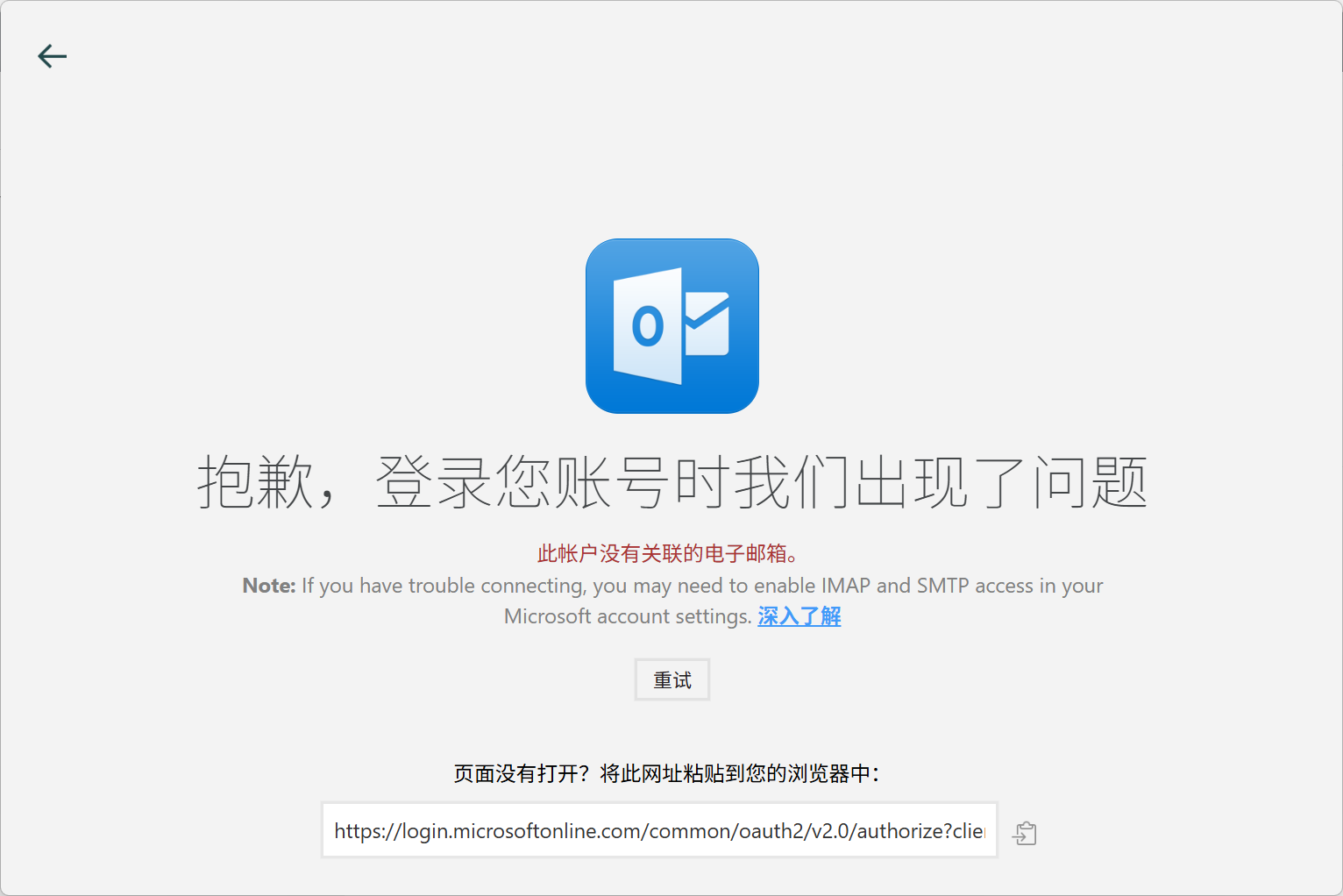
After completing the Microsoft sign-in flow in your browser and granting permissions, Mailspring may display:
- “Authentication Error — Check your username and password (SMTP)”
- “Authentication Error — Check your username and password (IMAP)”
- A generic connection error after the “Connecting to Office 365…” step
These errors typically mean that the OAuth handshake succeeded, but Mailspring could not establish an IMAP or SMTP connection to your mailbox because the protocols are disabled.
Solutions by Account Type
Office 365 / Microsoft 365 (Organizational Accounts)
If your email address is managed by an organization (e.g., a company or school), your IT administrator controls whether IMAP and SMTP are enabled. Ask your admin to perform the following steps:
Step 1: Enable Authenticated SMTP for Your Mailbox
- Sign in to the Microsoft 365 Admin Center
- Navigate to Users > Active users
- Select the affected user
- Click Mail in the flyout panel
- Click Manage email apps
- Ensure Authenticated SMTP is checked
- Click Save changes
Alternatively, an admin can enable this via Exchange Online PowerShell:
Set-CASMailbox -Identity user@yourorg.com -SmtpClientAuthenticationDisabled $false
Step 2: Verify IMAP Is Enabled for Your Mailbox
In the same Manage email apps panel, ensure that IMAP is also checked. Or via PowerShell:
Set-CASMailbox -Identity user@yourorg.com -ImapEnabled $true
Step 3: Check Organization-Wide Settings
If SMTP AUTH is disabled at the organization level, the per-mailbox setting won’t take effect unless it explicitly overrides it.
To check the org-wide setting via PowerShell:
Get-TransportConfig | Format-List SmtpClientAuthenticationDisabled
If the value is True, the admin can either:
- Set it to
$falseto enable SMTP AUTH org-wide, or - Use the per-mailbox override (
Set-CASMailbox ... -SmtpClientAuthenticationDisabled $false) which takes precedence over the org-wide setting
Step 4: Check Security Defaults
If your organization has Security Defaults enabled in Microsoft Entra ID (formerly Azure AD), SMTP AUTH is automatically disabled and the above settings may be overridden.
To check:
- Sign in to the Microsoft Entra admin center
- Navigate to Identity > Overview > Properties
- Click Manage security defaults
- If Security defaults is set to Enabled, SMTP AUTH is blocked
Your admin may need to switch from Security Defaults to Conditional Access policies for more granular control, allowing SMTP AUTH for specific users while maintaining security for the rest of the organization.
Step 5: Verify the App Registration
Mailspring should appear as an authorized application in your Microsoft Entra (Azure AD) portal under Enterprise applications. If your organization restricts which apps users can consent to, an admin may need to grant consent for Mailspring.
Outlook.com / Hotmail / Live.com (Personal Accounts)
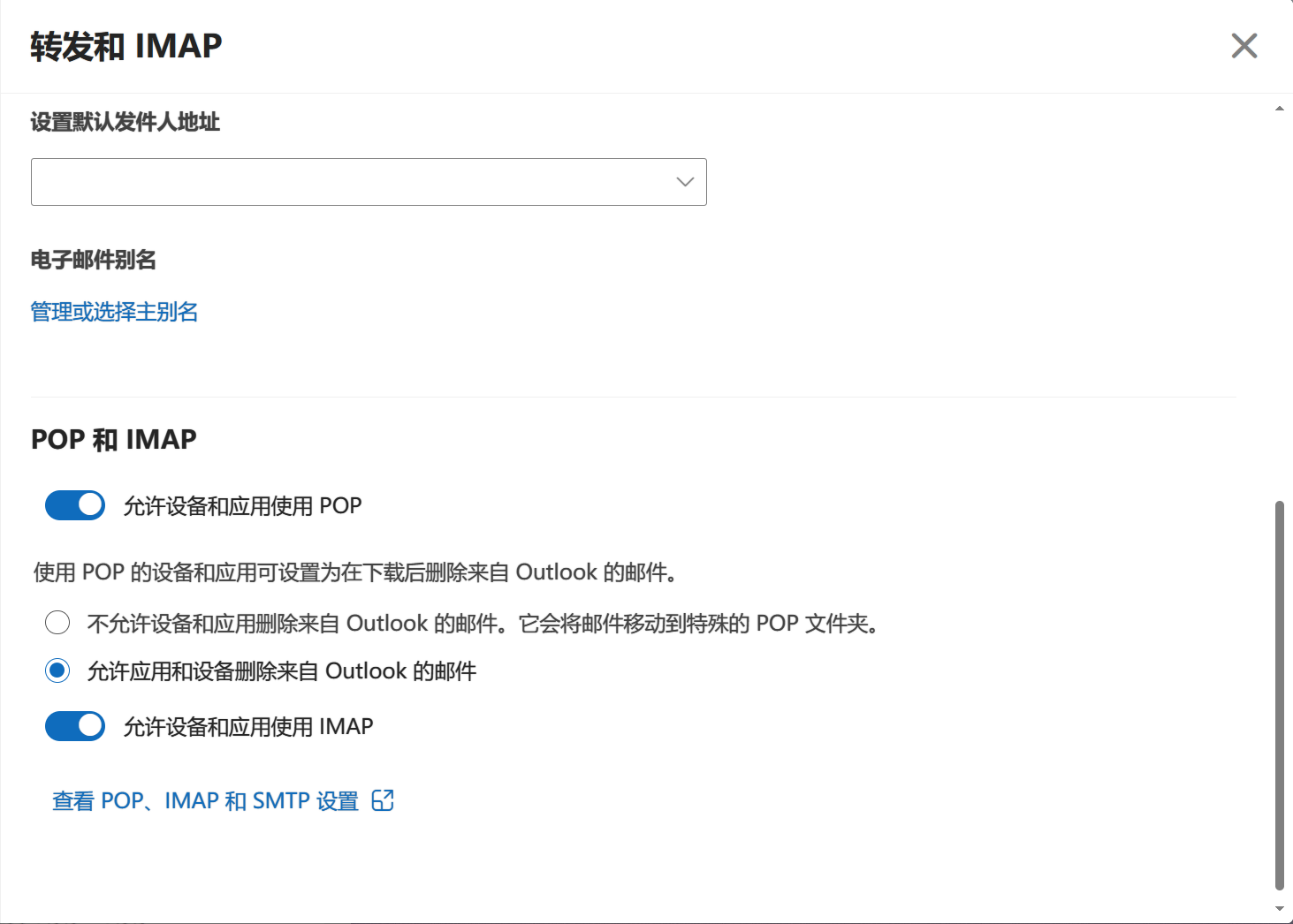
Personal Microsoft accounts generally have IMAP and SMTP enabled by default, but settings can sometimes get out of sync. If you’re having trouble:
- Sign in to Outlook.com
- Go to Settings (gear icon) > View all Outlook settings
- Navigate to Mail > Sync email
- Under POP and IMAP, ensure that:
- Let devices and apps use POP is set to Yes
- Let devices and apps use IMAP is set to Yes
- Save your changes and try connecting Mailspring again
If you use two-factor authentication on your personal Microsoft account, make sure you’re completing the full OAuth sign-in flow in your browser (including any MFA prompts) rather than trying to use a username and password directly.
Microsoft 365 Family / Personal Subscriptions
Microsoft 365 Family and Personal subscriptions use the same Outlook.com infrastructure as personal accounts. Follow the personal account steps above. Note that some newer Microsoft 365 accounts created in 2025 or later may have SMTP access restricted by default — check the Sync email settings as described above.
Troubleshooting Checklist
If you’ve completed the steps above and are still having trouble, work through this checklist:
- OAuth completed successfully? You should see a “You are all set” or similar confirmation in your browser before returning to Mailspring.
- IMAP enabled? Confirm at the mailbox level (admin center or PowerShell).
- Authenticated SMTP enabled? Confirm at the mailbox level.
- Organization-wide SMTP AUTH not disabled? Or per-mailbox override is set.
- Security Defaults not blocking SMTP? Check Entra ID settings.
- No Conditional Access policies blocking the connection? Some organizations have policies that block legacy protocols or unmanaged devices.
- Firewall / network not blocking ports? Mailspring needs access to:
outlook.office365.comon port 993 (IMAP over SSL/TLS)smtp.office365.comon port 587 (SMTP over STARTTLS)
- Mailspring is up to date? Ensure you’re running the latest version of Mailspring.
Connection Details
For reference, Mailspring uses the following settings for Microsoft accounts:
| Setting | Value |
|---|---|
| IMAP Server | outlook.office365.com |
| IMAP Port | 993 |
| IMAP Security | SSL/TLS |
| SMTP Server | smtp.office365.com |
| SMTP Port | 587 |
| SMTP Security | STARTTLS |
| Authentication | OAuth 2.0 |