Description
A very basic vibecoded button to add highlights to your emails.
Features
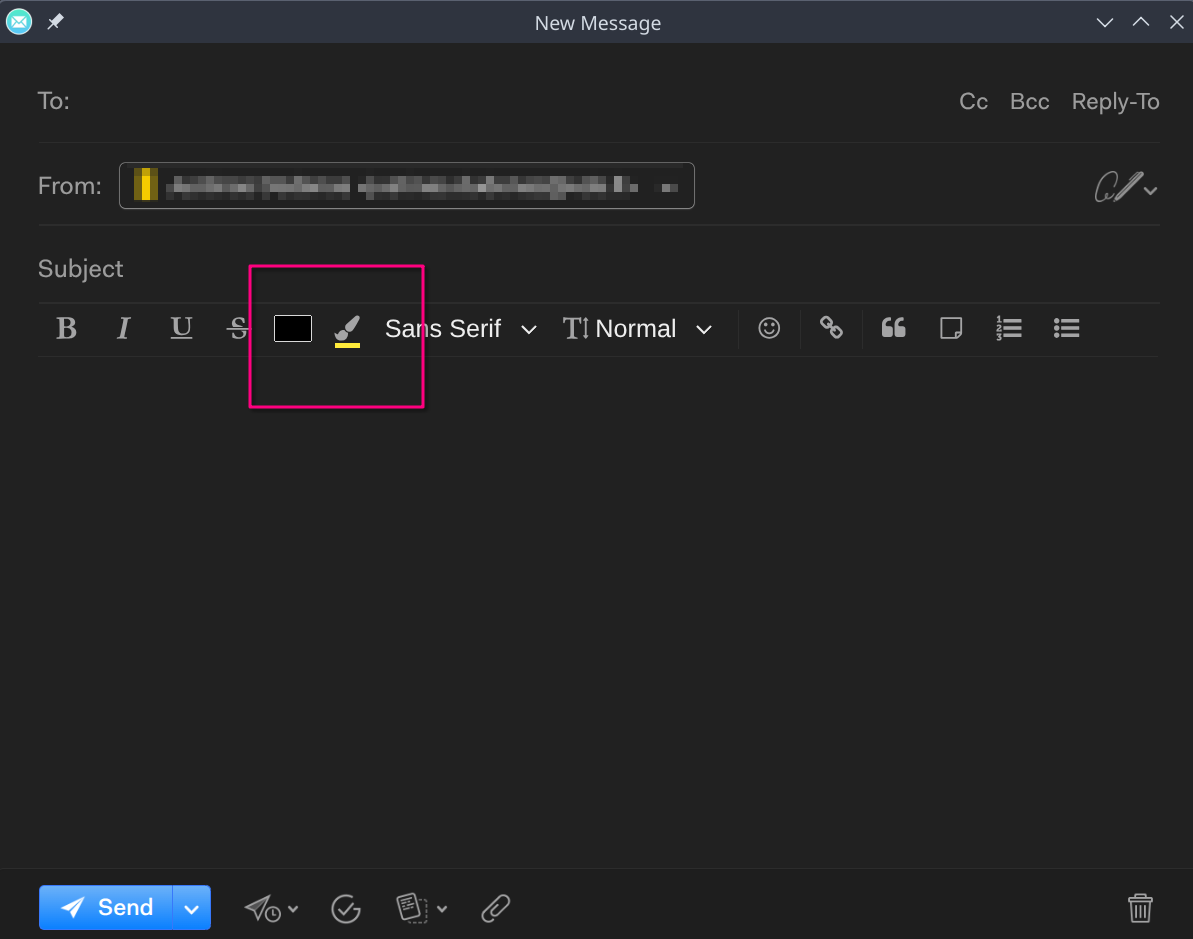
Adds a highlighter button to the composer toolbar, right after the text-colour picker, and a Ctrl+Shift+H shortcut that turns highlighting on or off for the selected text.
How it works: Mailspring has no official way for plugins to add new formatting to the composer. The plugin hooks into the composer’s internal editor code, based on the current source:
- Highlighted text is sent as
<span style="background-color:#ffeb3b">, which mail clients generally display. - Highlights stay in place when you save a draft and reopen it.
- If only part of the selection is highlighted, the shortcut highlights all of it. If all of it is highlighted, the shortcut removes it.
To use a different shortcut, add this in Preferences → Shortcuts → “Edit custom shortcuts…”:
json
{
  "composer:toggle-highlight": "mod+alt+h"
}
To change the colour, close Mailspring and add this inside the "*" section of ~/.config/Mailspring/config.json:
json
"mailspring-highlight": {
  "color": "#ffeb3b",
  "preservePastedHighlights": false
}
Setting preservePastedHighlights to true keeps the highlighting on text you paste from LibreOffice or Word. It’s off by default because Mailspring deliberately drops pasted background colours: text copied from dark-themed web pages would otherwise arrive with dark backgrounds.
Screenshots
Install
Get it from Gitlab
Getting Help
It is not likely that I could help, as I cannot code properly..
But please feel free to contribute code on Gitlab and improve it for everyone.