I was able to get to the bottom of this. These are the symptoms I saw:
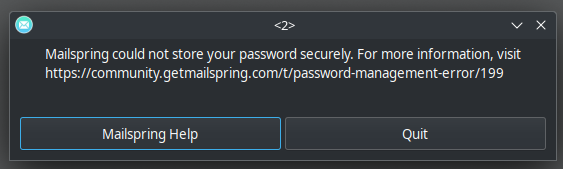
- “Mailspring could not store you password securely”
- Electon logs:
safeStorage.encryptString … Encryption is not available
- On Wayland, the window sometimes launched but was invisible (no window on screen), even though processes were running
Root causes
- Keychain selection: Electron (which Mailspring uses) only enables encrypted storage if it can load libsecret and talk to a running org.freedesktop.secrets service. On COSMIC (not GNOME), because I am running this on Pop!_OS, Electron doesn’t always auto-pick the GNOME/libsecret backend.
- Windowing: On some GPUs/compositor combinations, Electron on Wayland can create a window that never becomes visible. Running under XWayland avoids that.
What I did
- Switch to the native
.deb build and removed the Flatpak I had running so it can reach the host keyring directly.
- Verified the keyring service and libsecret runtime are present.
- Launched Mailspring with environment vars that make Electron choose the GNOME/libsecret backend.
- For the invisible window, I forced XWayland (
–-ozone-platform=x11), which made the UI appear reliably.
- Wrapped it all in a tiny launcher and desktop entry so it’s one click going forward.
If you run into these issues, here’s what you can try step by step:
- (Optional) Remove the Flatpak to prevent confusion, if you are running a Flatpak version.
flatpak uninstall -y com.getmailspring.Mailspring || true
- Install the native
.deb by downloading it from the website and then run the following command
sudo apt install ./mailspring-*.deb
- Ensure keyring + libsecret are in place
sudo apt update
sudo apt install gnome-keyring seahorse libsecret-tools libsecret-1-0 gir1.2-secret-1
systemctl --user enable --now gnome-keyring-daemon.service
Here are a few health checks to run now:
# Secret service on D-Bus?
busctl --user list | grep org.freedesktop.secrets

# libsecret runtime visible to Electron?
ldconfig -p | grep libsecret-1.so.0
If you want to ensure that keyring actuall stores/restries a secret, you can run the following two commands to test:
secret-tool store --label="Test Secret" app mailspring-test key ping
secret-tool lookup app mailspring-test key ping   # should print: ping
- Launching Mailspring
env XDG_CURRENT_DESKTOP=GNOME DESKTOP_SESSION=gnome \
    ELECTRON_OZONE_PLATFORM_HINT=wayland \
    /usr/bin/mailspring --password-store=gnome
This eliminated my secure storage error. However, I had an issue where the Mailspring app wouldn’t show because I’m on Wayland. So I switched to XWayland by running this command:
env XDG_CURRENT_DESKTOP=GNOME DESKTOP_SESSION=gnome \
    ELECTRON_OZONE_PLATFORM_HINT=x11 \
    /usr/bin/mailspring --password-store=gnome \
    --ozone-platform=x11
This now shows the window reliably for Mailspring.
- Make a simple command to get things going moving forward:
sudo tee /usr/local/bin/mailspring-gnome >/dev/null <<'EOF'
#!/usr/bin/env bash
XDG_CURRENT_DESKTOP=GNOME \
DESKTOP_SESSION=gnome \
ELECTRON_OZONE_PLATFORM_HINT=x11 \
/usr/bin/mailspring --password-store=gnome \
  --ozone-platform=x11 "$@"
EOF
sudo chmod +x /usr/local/bin/mailspring-gnome
rehash # zsh refresh
- Make the menu icon use the same flags:
mkdir -p ~/.local/share/applications
cp /usr/share/applications/Mailspring.desktop ~/.local/share/applications/
sed -i 's|^Exec=.*|Exec=env XDG_CURRENT_DESKTOP=GNOME DESKTOP_SESSION=gnome ELECTRON_OZONE_PLATFORM_HINT=x11 /usr/bin/mailspring --password-store=gnome --ozone-platform=x11 %U|' ~/.local/share/applications/mailspring.desktop
update-desktop-database ~/.local/share/applications
Verify that it’s done and working:
mailspring-gnome opens a visible window.- You don’t see the “could not store password securely” popup.
seahorse shows the Login keyring unlocked while Mailspring is running.
Optional things to add, if you’d like:
- Ensure the keyring is always ready after login:
systemctl --user enable --now gnome-keyring-daemon.service
- If Mailspring ever starts off the screen or black/invisible, run these:
pkill -f /usr/share/mailspring/mailspring
mv ~/.config/Mailspring/window-state.json{,.bak} 2>/dev/null || true
mv ~/.config/Mailspring/Bounds.json{,.bak} 2>/dev/null || true
If you want to try native Wayland later when things are more compatible, you can run the following:
env XDG_CURRENT_DESKTOP=GNOME DESKTOP_SESSION=gnome \
    ELECTRON_OZONE_PLATFORM_HINT=wayland \
    /usr/bin/mailspring --password-store=gnome \
    --enable-features=UseOzonePlatform,WaylandWindowDecorations \
    --ozone-platform=wayland
If it’s stable, swap those flags into your wrapper/desktop entry.
I hope this is helpful for anyone else out there.
Cheers!
 Tried disabling that briefly and re-trying but no change
