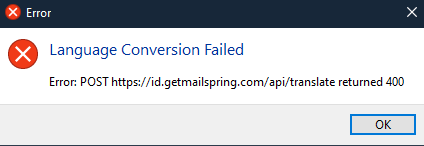
Translation is controlled per language from the banner on the message rather than from a global preference, which is why there’s nothing in Preferences for it. Here’s how it works:
When you open a message whose language differs from your Interface Language (Preferences > General), a “Translate from X to Y?” banner appears at the top of the message. Click Translate for a one-off, or open Options and choose Always translate X - that’s the Pro option, and from then on every message in that language is translated automatically as soon as you view it.
If the banner never appears for a language, you (or someone at your keyboard) probably picked Never translate X at some point. Choose Reset translation settings from the Options menu on any translation banner to clear that.
The banner also won’t show for very short messages (under ~50 characters, where language detection is unreliable) or when the detected language matches your interface language.
If you’re a Pro subscriber and “Always translate” isn’t kicking in, open Preferences > Subscription and check that it shows your Pro plan - the refresh icon next to your name re-checks it, and signing out and back in also does the trick. Docs: Automatically translate incoming email — Mailspring Documentation